Description
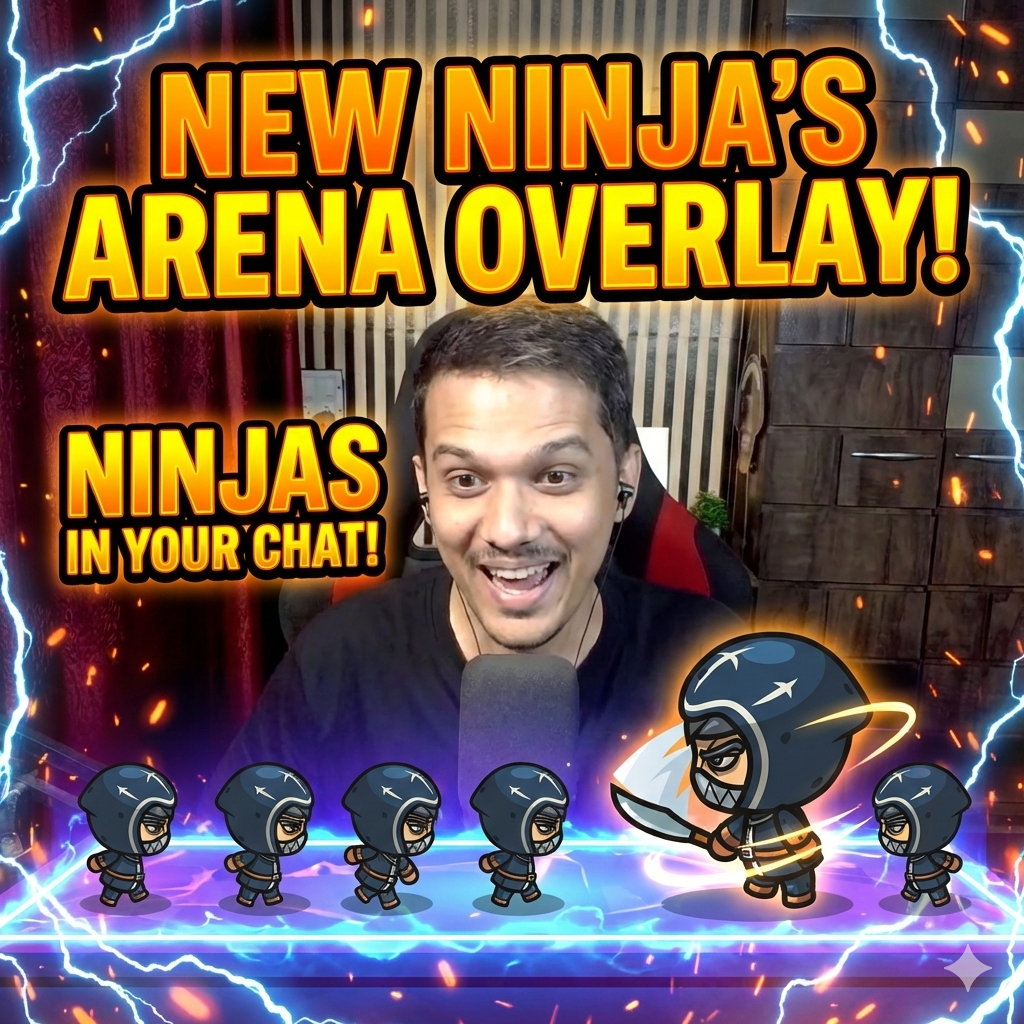
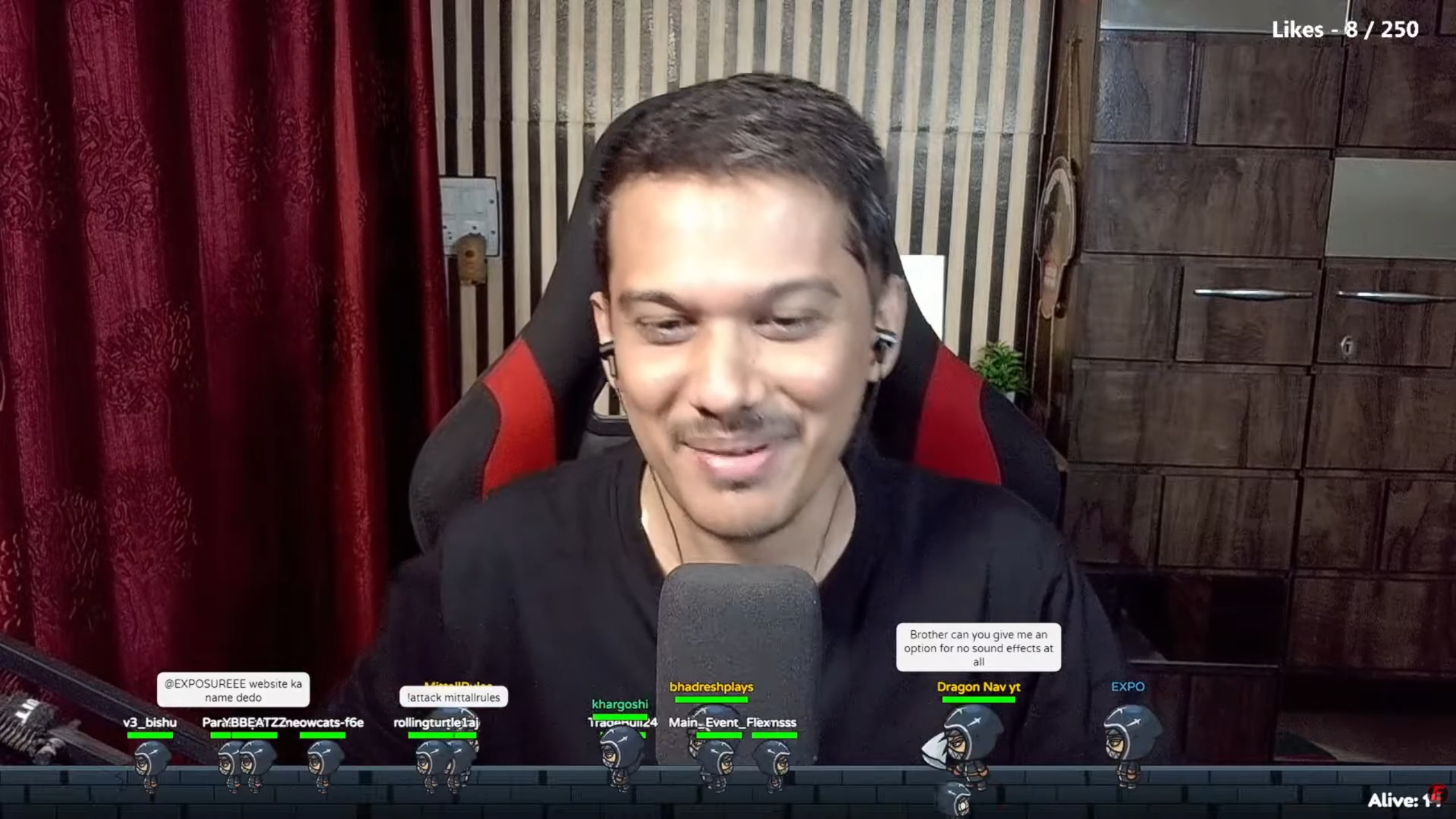
Engage your audience like never before. Ninja’s Arena is a premium interactive overlay that visualizes your chat as a 2D fighting game. Viewers don’t just watch—they join the game.
🔥 Key Features:
-
Role-Based Scaling: The overlay automatically detects user roles and adjusts their avatar size and power:
-
🛡️ Moderators (Blue): Larger avatars (1.35x) with increased damage.
-
💚 Members/Sponsors (Green): Distinct status with larger size (1.35x) and unique sword sound effects on attack.
-
👑 VIPs/Donors (Gold): Massive “Raid Boss” avatars (1.6x) with high HP.
-
🎙️ Host (You): Immortal status with a blue nameplate.
-
-
Interactive Commands: Viewers can type
!jumpto leap,!hideto vanish in a puff of smoke (strategic stealth!), and!attack @userto attack other chatters. -
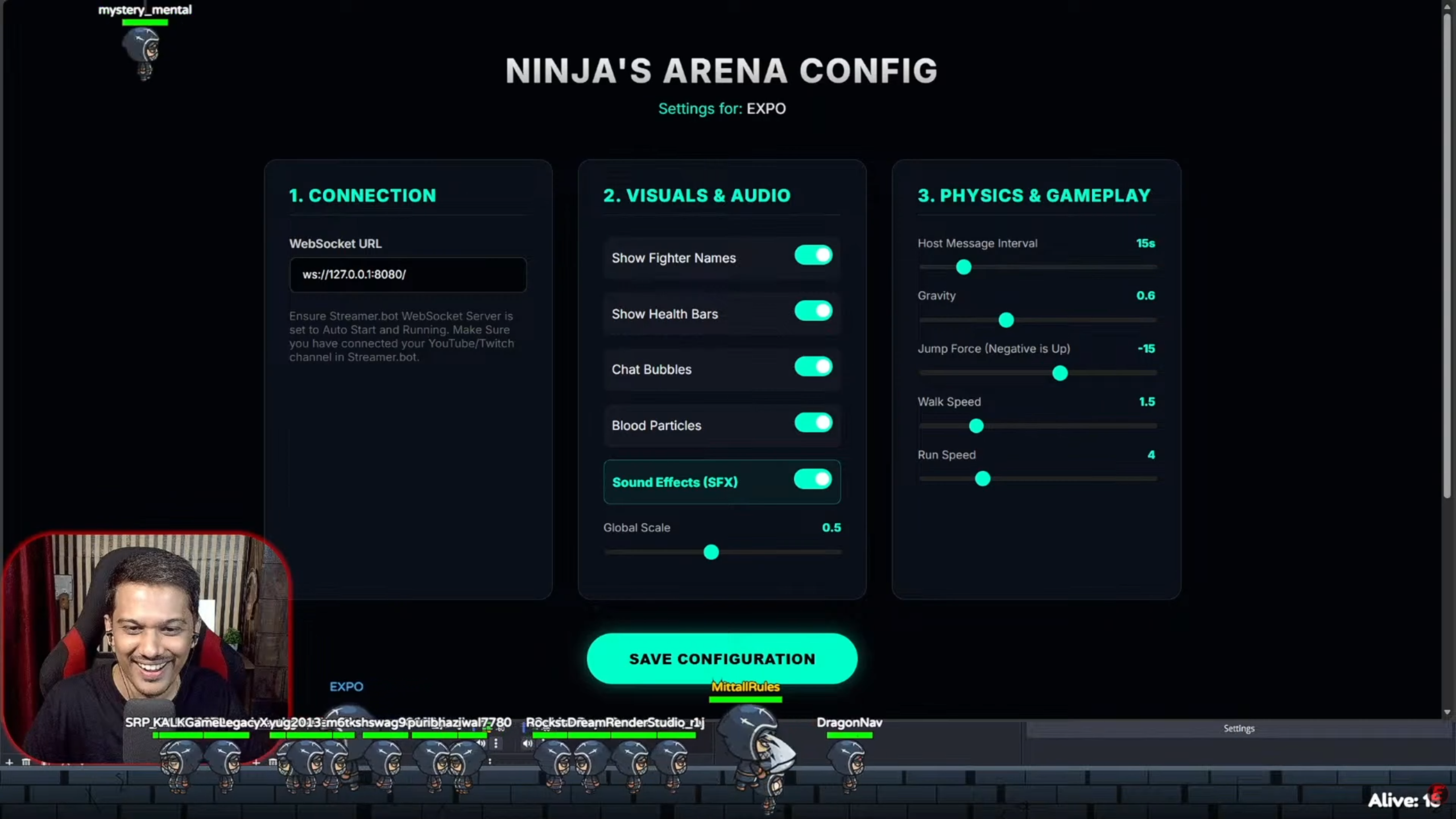
Smart Audio & Visuals: Includes a toggleable SFX system (sword hits), blood particle effects, and dynamic health bars.
-
Anti-Spam Tech: Automatically ignores bot messages from Nightbot, Streamlabs, etc., keeping the arena clean.
-
Full Customization: Comes with a secure Configuration Panel to adjust gravity, game speed, font sizes, and chat bubble without touching a line of code.
🛠️ How to Use (3 Simple Steps)
Step 1: Get Your Link After purchasing, you will receive a unique License Key and a web link.
Step 2: Add to OBS
-
Open OBS Studio.
-
Add a new Browser Source.
-
Paste your unique overlay URL.
-
Set Width to
1920and Height to1080. -
Check “Control audio via OBS” if you want to manage the sound levels.
Step 3: Connect Streamer.bot
-
Open Streamer.bot.
-
Go to the Platforms tab and login with your YouTube or Twitch account. (This allows the overlay to read your live chat).
-
Go to Servers/Clients > WebSocket Server.
-
Ensure the server is set to Auto Start and is currently Running.
-
That’s it! The overlay connects automatically.
Note: You can adjust settings like Font Size and Sound Effects at any time using the provided Config Link on your livereact.in dashboard.
⚠️ Requirement: You must keep Streamer.bot open in the background while streaming for the overlay to connect and receive live chat messages and alerts.




Reviews
There are no reviews yet.